Before starting
let's clarify what it means to Jailbreak to your iPhone, iPhone or iPod Touch updated to version 5 or IOS IOS 5.0.1. In the process removes the restrictions that the terminal brings factory , so it will be possible install applications not approved by Apple from Cydia , Unofficial App Store to terminals unlocked. To give you an idea of ??the advantages, with the Jailbreak add topics you change the appearance of the terminal, add new widgets to the center notification and install free applications . With Jailbreak can still download apps from the App Store without any problems. In short, have functions that would be impossible in a terminal is not unlocked. In addition the process is very simple, legal and completely reversible, if you change your mind you can always go back.
Since, Not currently available Untethered Jailbreak The following tutorial is for Tethered method. This means that each time terminal will not turn it off again until you connect to your computer in order to carry out the boot process. However, will explain how to install the patch SemiTether. This feature will allow you switch on the phone , but some functions as the native applicati on email will not be available until the redo the process of booting the computer. Remember that this method supports Jailbreak iPhone 4, iPhone 3G, iPhone and iPod Touch third or fourth generation that have been updated 5 or IOS IOS 5.0.1 . The iPad 2 and do not allow 4S iPhone unlocking this process. And with that we started.

Jailbreak Process
for 5 devices with IOS or IOS 5.0.1
1) The first thing you do is perform a backup through iTunes, which should be at version 10.5 (if not you can download page from Apple ). This step is a caution in the event that something goes wrong , this way you can restore to return to have the phone as I was. To save the copy 'll have to right click the device name that appears in the bar on the left. Remember that iOS 5 is no longer necessary to use the cable , so also be done wirelessly.
2) When you save the backup can go to download software needed to do the jailbreak. This is redsnow in version 0.9.9b8 , which is available for Mac or Windows. If you did Jailbreak know that sometimes it was necessary to download the file. Ipsw that contains the firmware . With this release do not need this step because the program collects the necessary information . Here attached links to download.
Redsnow
0.9.9b8 - Windows
Redsnow
0.9.9b8 - Mac

3) Once downloaded the program and saved the backup is the most important step: to Jailbreak. It is very important sure the terminal is turned off and connected to the computer via cable. When opening Redsnow must select Jailbreak. Al press Next (next), you must put the iPhone, iPhone or iPod Touch in DFU mode . To enter DFU mode must press the power button (in the upper right) for three seconds , after this time must be press the home button for ten seconds without releasing the power button. Finally must release the power button and hold the home key for about fifteen seconds more. At first it may se em complicated but you see is simple as also going redsnow giving instructions (in English) on how to do and WIN if you do not go well you can try again as often as necessary.
From here
the process is carried out automatically. All you have to do is make sure the Install Cydia (normally enabled by default) when the program asks you for permission. You'll see things start to happen in the mobile a screen with text and logo finally Redsnow .

Resetting the device tethered mode with redsnow
Already have
Tethered Jailbreak in your terminal. The first time you try to go into Cydia (App Store for Jailbreak terminals ) wil l fail and will not open, by what you need to restart the device. At the entrance and you overtook that Tethered Jailbreak does not allow restart of the device unless you connect to your computer. The process is similar to Jailbreak , we explain the steps to restart with Redsnow Tethered mode.
1) Once again, we must off your machine and connected to the computer via cable. Open Redsnow but in this case
press the Extras. In the menu there that Just choose Boot.
2) To begin the process 'll have to put the terminal back into DFU mode , as explained above, and WIN will automatically reboot.

SemiTether How to install the patch
At first you were talking about the differences Tethered and Untethered Jailbreak is the most stable . For now Untethered version has shown no signs of life , so the developers have to work to overcome the disadvantages of the method Tethered. BigBoss team has worked on a tool that would halfway between the two options. This is the patch SemiTether us to reboot the phone with most operational functions , although some, such as applications downloaded from Cydia or Mail application will not work until you reboot with Redsnow (the same So we explained in the previous section). We tell you everything you need to do to install it.
1) Once Jailbreak process see that there is a new application c alled Cydia. From here you can install all type of applications to enhance the functions of your phone or change their appearance , among many other things. Cydia Opening first ask you what kind of user you are to choose between three options: user, hacker or developer.

2) To install the patch Semitether have to add a new repository. repositories are the sources from where you downloaded different applications from Cydia. To add a new one must access the section Manage at the bottom of the screen. Selecting the Fonts option you'll notice a list pre-installed. Pressing the Edit button option ap pears to create a new, just have to write the following URL.
http://thebigboss.org/semitether/
3) Once the source added click on it and you can download the patch SemiTether . The installation is carried out in a Auto .
Now you can restart the terminal whenever you want. If you run out of battery and you're not home because they have no problems most functions will be operational. Remember that to enjoy all benefits have to restart the device with the help of Redsnow and Just Boot option.



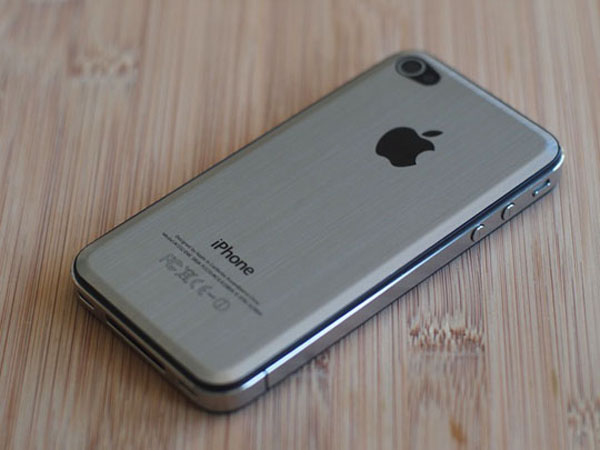

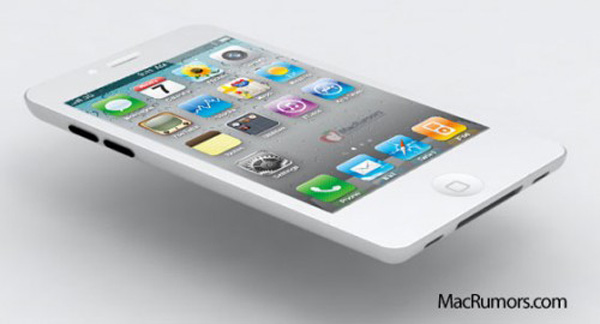


 Apple often surprises us with its patents , and in this case was not to be different. The Cupertino company has patented what would be the closest thing to a airbag we could see on the iPhone 5, the next phone that the company will release the block.


 With the passage of time, the iPhone 5 seems to be closer . However, their specifications are still a mystery. Of these we are especially curious if Apple will eventually include an NFC chip , am ong other uses, be used to pay in establishments, something like Google is testing with your application Google Wallet .

 The new Nano-SIM card , created by Giesecke & Devrient, has dimensions of 12 by 9 mm (30% smaller than its predecessor, the Micro-SIM) and could reach the first smartphones in early 2012. Such data have blown the rumor that iPhone 5 could be equipped with this li ttle SIM.


 LG Electronics


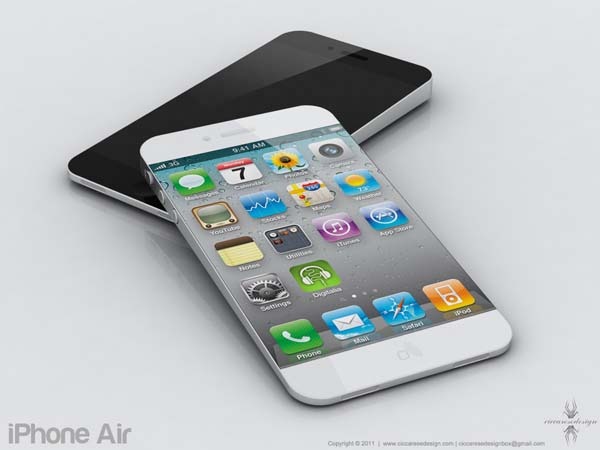
 pod2g, one of the developers working on the jailbreak unthetered of iOS 5 has warned users interested in unlocking your handset not upgrade to version 5.0.1 iOS